
How to Keep a NAS Cool When It’s Stuck in a Closet
 12 min read
2,295 words
12 min read
2,295 words
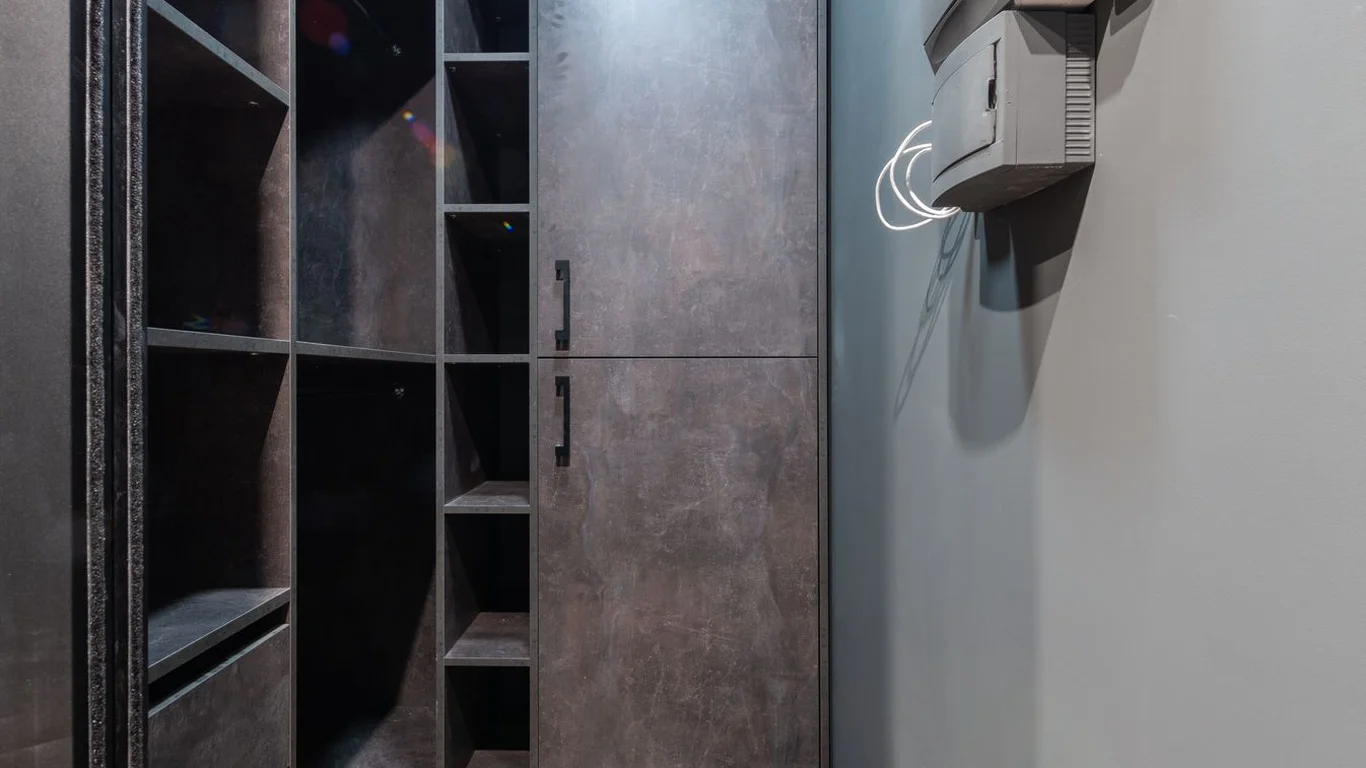
If your NAS is stuck in a closet, a cabinet, or any enclosed space, you’ve likely already noticed the problem: the drives run warmer, the fans spin louder, and you’re worried about heat-related failures. You’re right to be concerned. Enclosed spaces trap heat, and for a NAS, that directly shortens the lifespan of your hard drives and can cause system instability. The good news is that you can often solve this without moving the NAS—by using a combination of passive ventilation, active exhaust fans, and temperature monitoring. This guide walks you through the practical, cost-effective fixes to keep your closet NAS running cool and quiet.
Why a Closet Makes Your NAS Overheat: The Physics of Trapped Heat
A NAS generates heat from its CPU, RAM, and especially its hard drives, which produce a surprising amount of thermal energy during reads and writes. In an open room, that heat dissipates naturally into the surrounding air. In a closet, you’ve created a sealed box around a heat source. The air inside the closet warms up, the NAS intakes that warm air instead of cool air, and its internal fans have to spin faster to try to keep components at a safe temperature. This is a classic nas overheating closet scenario, and it’s more common than you might think.
The result is a cycle of higher temperatures, louder fan noise, and increased power draw. Over time, sustained heat above 45-50°C can accelerate the failure rate of mechanical hard drives. The first step to fixing this is understanding that you don’t need to cool the entire closet to room temperature—you just need to create a path for the hot air to escape and cooler air to enter.
Many consumer NAS units (Synology, QNAP, Asustor) are designed for open-air placement and assume a room temperature of 22-26°C. When placed in a closet where ambient air can reach 35-40°C, the internal fans may hit maximum RPM and still fail to keep drives below 50°C. This is a design limitation, not a defect—the chassis simply can’t shed heat into already-warm air.
Passive Fixes First: Venting and Spacing for a Cool NAS in a Closet
Before you buy any hardware, start with the free or low-cost passive changes. These alone can drop your NAS temperature by 3-5°C in many cases.
Door Venting: The Single Biggest Passive Change
If your closet has a solid door, it’s acting as a thermal barrier. The easiest fix is to leave the door slightly ajar, but that’s not always practical or aesthetic. A better solution is to install a passive vent or grille in the door itself—either at the top (for hot air exhaust) and bottom (for cool air intake). A standard 6×10 inch return air grille costs $10-15 and can be cut into a hollow-core door with a jigsaw. This creates a natural convection loop: cool air enters low, passes over the NAS, warms, and exits high.
If cutting the door isn’t an option, simply removing any clutter from the floor and ensuring there’s at least 2-3 inches of clearance on all sides of the NAS (especially the rear exhaust) is critical. Stacking boxes, cables, or other gear directly on top of the NAS is a common mistake that blocks the top exhaust vents entirely.
Never close a closet door on a running NAS if the closet has no ventilation. The temperature inside can rise 10-15°C above ambient within 30 minutes of sustained disk activity, pushing drives past their safe operating range.
Shelf Spacing and Avoiding Heat Recirculation
If your NAS sits on a shelf with other equipment (a modem, router, or another server), you’re creating a heat island. Each device heats the air around it, and the NAS ends up pulling in pre-warmed air. Space devices out by at least 4-6 inches vertically. If possible, place the NAS on the highest shelf—heat rises, so the top shelf is where the warmest air accumulates, but it’s also where you can most easily exhaust that heat out of the closet.
Good Closet NAS Setup
- Door has top and bottom vents
- NAS on top shelf with 3+ inches clearance
- No gear stacked on the NAS
- Closet is not packed with other electronics
Bad Closet NAS Setup
- Solid door closed tight
- NAS surrounded by cables and boxes
- Other electronics stacked on top
- Closet is a storage closet with no airflow
Active Cooling: Inline Exhaust Fans for a Quiet NAS Cooling Solution
If passive venting isn’t enough, or if you want a more controlled solution, adding an active exhaust fan is the next step. This is where you can get the biggest temperature drops—often 8-12°C.
Choosing the Right Fan for a Closet NAS
You don’t need a loud, high-CFM industrial fan. For a typical closet (2×3 feet), a small 4-6 inch inline duct fan or a quiet computer case fan (120mm or 140mm) mounted as an exhaust is sufficient. The key is to exhaust air out of the closet, creating negative pressure that pulls cool air in from under the door or through a passive vent. A fan that simply blows air around inside the closet just recirculates warm air—it’s nearly useless.
For a truly quiet nas cooling solution, look for a fan rated at 20-30 dB or less. Noctua and be quiet! make excellent 120mm/140mm case fans that move enough air (40-60 CFM) at near-silent speeds. If you need more airflow, a small AC Infinity inline fan (like the S6 or T6) can be mounted in the closet ceiling or door grille and runs very quietly at low speed.
| Fan Type | Noise Level | Airflow (CFM) | Typical Cost | Best For |
|---|---|---|---|---|
| 120mm PC Case Fan | 15-25 dB | 40-60 | $15-$30 | Small closets, low power draw |
| 140mm PC Case Fan | 18-28 dB | 50-80 | $20-$35 | Medium closets, good balance |
| AC Infinity S6 Inline | 22-30 dB | 45-60 | $50-$70 | Ceiling or wall mount, quiet |
| AC Infinity T6 Inline | 25-35 dB | 150-200 | $80-$100 | Large closets or cabinet banks |
Thermostat-Controlled Fan: Set and Forget
Rather than running a fan 24/7, use a thermostat switch to turn it on only when the closet air temperature rises above a set point (e.g., 30°C). This saves power, reduces noise, and extends fan life. You can buy a simple plug-in thermostat (like the Inkbird ITC-308 or a $15-20 temperature controller from Amazon) that turns the fan on when the temp hits your threshold. Connect the fan to the controller’s output, place the sensor near the NAS exhaust, and you have a fully automatic nas ventilation guide solution.
Position the fan to exhaust hot air out of the closet, not intake cool air. Mount it high on the wall or in the top of the door. The negative pressure will naturally pull cooler air in from the bottom of the door or through a separate intake vent.
Monitoring: Is Your NAS Temperature Actually Too High?
Before you spend money on fans, you need to know your actual temperatures. Guessing leads to either unnecessary spending or ignoring a real problem. Most NAS operating systems provide built-in temperature monitoring, but you have to know where to look.
Checking Drive Temperatures via SMART Data
SMART (Self-Monitoring, Analysis, and Reporting Technology) data on your hard drives includes a current temperature reading. In TrueNAS or Unraid, you can see this in the dashboard or via the command line. In Synology DSM, it’s under Storage Manager > HDD/SSD > Health Info. A healthy drive at idle should sit between 30-40°C. Under load, 45-50°C is acceptable for most modern drives (like WD Red or Seagate IronWolf). Above 50°C is a warning zone; sustained operation above 55°C is a strong indicator that your nas temperature too high fix is needed.
Monitoring CPU and Ambient Closet Temperature
CPU temperature matters too, especially if you run Docker containers, Plex transcoding, or other CPU-intensive tasks. In most NAS operating systems, you can check CPU temp in the resource monitor or via SSH with sensors. A good target is under 70°C under load. For the closet ambient temperature, a simple $10 digital thermometer/hygrometer placed near the NAS intake will tell you if the room’s air is the problem. If the closet air is above 35°C, your NAS is fighting a losing battle.
- Check drive SMART temperatures at idle and under load
- Monitor CPU temperature during typical workloads
- Place a thermometer in the closet to measure ambient air temp
- Log temperatures over a 24-hour period to see the peak
When Relocation Is the Only Real Fix
Despite your best efforts, some closets simply cannot be effectively ventilated. If you’ve added a door vent, spaced the NAS, installed an exhaust fan, and drives still hit 50-55°C under load, you need to face reality: the closet is not a viable location. This is especially true for closets that are interior (no external wall), very small (less than 2×2 feet), or filled with other heat-generating equipment like a modem, router, and UPS.
In that case, the best cool nas in a closet solution is to move the NAS to a better spot. Common alternatives include a basement utility room, a laundry room (with ventilation), a dedicated network cabinet in a home office, or even a garage if temperatures are moderate year-round. The cost of moving a CAT6 cable and power outlet is often less than the cost of replacing a failed drive from heat damage. For a detailed look at the power implications of different setups, see our guide on How Much Does It Cost to Run a NAS? Calculate Your Annual Electricity Bill.
If you relocate your NAS, you’ll also want to plan your backup strategy. Heat-damaged drives are a common failure scenario, and a solid backup plan is your safety net. Our guide on How to Back Up Your NAS: The 3-2-1 Rule in Practice covers how to protect your data regardless of where your NAS lives.
Bottom Line: Which Cooling Fix Should You Choose for Your Closet NAS?
For most closet NAS setups, the best fix is a two-step approach: start with passive venting (a door grille and proper spacing), then add a thermostat-controlled exhaust fan if temperatures remain above 45°C under load. This combination typically costs under $50 and drops drive temperatures by 8-12°C, bringing them back into a safe range. If your drives still exceed 50°C after these changes, or if the closet ambient temperature stays above 35°C, relocation is the honest and necessary answer. Don’t risk your data for the convenience of a hidden closet—a few extra feet of cable is far cheaper than a failed drive.
Frequently Asked Questions
Is it bad to keep a NAS in a closet?
It is not inherently bad, but it creates a challenging thermal environment that requires active management. Without ventilation, a closed closet can trap heat and cause drive temperatures to rise 10-15°C above open-air placement. If you add passive vents and an exhaust fan, a closet can work fine. Without those fixes, you risk shortened drive lifespan and increased fan noise. The key is to monitor temperatures—if drives stay under 45°C at idle, you’re in a safe zone.
What temperature is too hot for NAS hard drives?
For most modern NAS hard drives (WD Red, Seagate IronWolf, Toshiba N300), the manufacturer’s specified maximum operating temperature is 60-65°C. However, sustained operation above 50°C significantly increases the rate of failure. A good rule of thumb is to keep drives below 45°C at idle and below 55°C under sustained load. If your drives regularly hit 50°C or higher, you need to improve cooling. Above 60°C, you risk immediate thermal throttling or failure.
Can a small fan meaningfully cool a closet NAS setup?
Yes, a small fan can be very effective—but only if it is positioned to exhaust hot air out of the closet, not just circulate air inside. A 120mm or 140mm PC fan rated at 40-60 CFM, mounted high on the wall or in a door grille, can drop closet ambient temperature by 5-10°C and drive temperatures by 8-12°C. The key is creating negative pressure: the exhaust fan pulls hot air out, and cool air is drawn in from under the door or through a separate intake vent. A fan that just blows on the NAS without exhausting is far less effective.
How do I check if my NAS is actually overheating?
The most reliable method is to check the SMART temperature data from your hard drives. In Synology DSM, go to Storage Manager > HDD/SSD > Health Info. In TrueNAS, check the Dashboard or run smartctl -a /dev/sda in the shell. In Unraid, the Main tab shows drive temperatures. A drive reading above 50°C at idle is a clear warning. You should also check CPU temperature in your NAS’s resource monitor—anything above 80°C under load is concerning. Finally, place a simple digital thermometer inside the closet near the NAS intake; if the ambient air is above 35°C, your cooling setup is inadequate.
Last verified: July 10, 2026. Temperature thresholds based on manufacturer datasheets for WD Red Pro (WD141KFGX), Seagate IronWolf Pro (ST12000NE0008), and common consumer NAS operating systems. Fan specifications from Noctua, be quiet!, and AC Infinity product documentation.
🛡 Shop Recommended Hardware
Prices and stock verified regularly by our affiliate partners. As an affiliate, HomeLabCost may earn a commission on qualifying purchases at no extra cost to you.
Browse Hardware Picks →
homelabcost
HomeLabCost editor covering NAS builds, hardware selection, and homelab server setup guides.