
How to Reduce Your NAS’s Power Consumption (Without Losing Performance)
 10 min read
1,925 words
10 min read
1,925 words
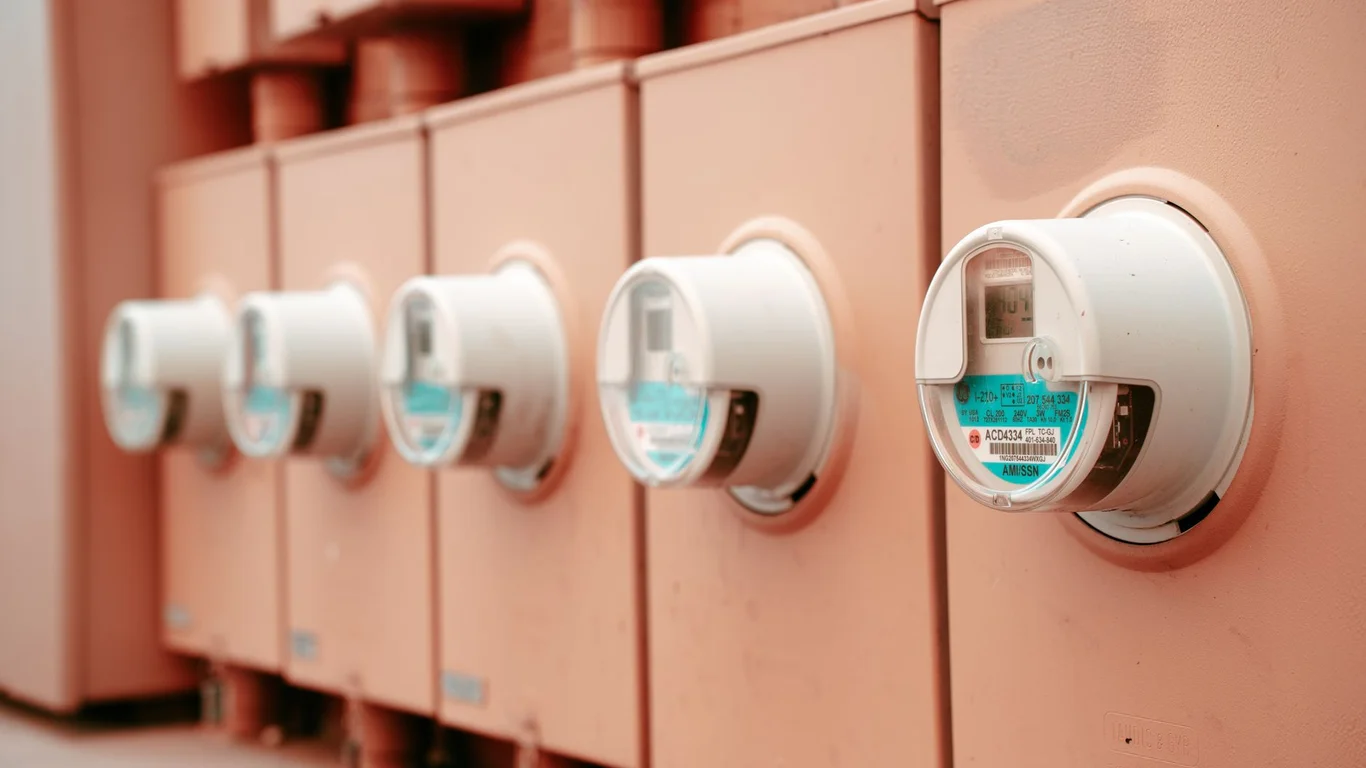
If your NAS is running 24/7, the electricity bill can quietly become one of your largest homelab expenses. The good news is that a few targeted changes can cut your NAS’s power consumption by 30-50% without sacrificing the performance you need for file serving, media streaming, or backup tasks. This guide walks through the specific hardware and software tweaks that deliver the biggest savings, with real wattage figures and a simple formula to estimate your annual cost.
What Actually Consumes Power in Your NAS?
To reduce power consumption, you need to know where the watts are going. A typical home NAS has three main power consumers: the CPU, the spinning hard drives, and any additional components like GPUs or expansion cards.
Spinning hard drives are often the largest single draw. Each 3.5-inch HDD consumes about 5-9W during active read/write and 3-5W at idle while spinning. A four-drive array can easily pull 20-35W from the drives alone. Solid-state drives (SSDs) use only 1-3W each, making them far more efficient for caching or boot pools.
The CPU typically draws 10-35W at idle for desktop-class chips (Intel Core i3/i5, AMD Ryzen) and 6-12W for low-power SoCs like the Intel N100 or Celeron J-series. A dedicated GPU can add 15-50W even at idle. The motherboard, RAM, and fans together account for another 10-20W.
Enable HDD Spin-Down for Massive Idle Savings
The single most impactful software change you can make is enabling hard drive spin-down (also called standby or spindown). When a drive isn’t accessed for a set period, the NAS tells it to stop spinning, dropping its power consumption from 3-5W to near zero (0.1-0.3W).
Most NAS operating systems let you set spin-down intervals per drive or per pool. TrueNAS Scale and Core use a global setting under System > Advanced > Idle Drive Power Management. Unraid has a per-drive setting under Settings > Disk Settings. OMV uses the hdparm command or a plugin.
How to Set Up HDD Spin-Down (Step-by-Step)
A 20-30 minute timeout works well for most home NAS use cases. If you access files frequently (every few minutes), use 60 minutes to avoid excessive spin-up cycles.
In TrueNAS Scale, go to System Settings > Advanced > Idle Drive Power Management and set the Advanced Power Management (APM) level to 127 or lower. In Unraid, set the spin-down delay under Settings > Disk Settings for each drive.
Check after a few days that drives are actually spinning down. Use smartctl -a /dev/sda | grep Spin_Up to see spin-up cycle counts. A drive should spin down after the timeout period with no active access.
If you have a drive that’s accessed constantly (like a media library that’s always being scanned), exclude it from spin-down. Spinning up and down every few minutes wastes more power than staying on.
Spin-down adds a 5-15 second delay when you first access a sleeping drive. This is fine for file servers and backups, but unacceptable for databases, virtualization, or real-time media editing. Also, frequent spin-up/down cycles (more than 10-20 per day) can increase mechanical wear on some consumer drives.
Optimize CPU Power Settings for Lower Idle Draw
Modern CPUs support power-saving states called C-states (C0 is active, C1 is halt, C6/C7 are deep sleep). Enabling deeper C-states in your BIOS can drop CPU idle power by 5-15W, depending on the chip.
How to enable CPU power saving:
- Enter BIOS/UEFI and look for CPU Power Management or Advanced CPU Configuration.
- Enable C-States (set to “Enabled” or “Auto”).
- Enable Package C-State Limit to C7 or C10 if available.
- Enable Intel SpeedStep or AMD Cool’n’Quiet for dynamic voltage scaling.
- Disable Above 4G Decoding and Re-Size BAR Support if you don’t need them for a GPU — these can prevent deep sleep states.
Many server-grade motherboards (Supermicro, ASRock Rack) disable deep C-states by default for maximum compatibility. If your NAS uses one of these boards, you may need to manually enable C6/C7 in the BIOS. On consumer boards, C-states are usually enabled by default but may be limited by connected PCIe devices — a single NVMe drive or a 10GbE card can prevent the package from entering its deepest sleep state.
Undervolting (reducing CPU voltage slightly) can lower both idle and load power by 5-15%. This is possible on most Intel desktop CPUs (Skylake and newer) using tools like ThrottleStop or Intel XTU, and on AMD Ryzen via PBO2 curve optimizer. Undervolting is safe if done conservatively — a 50-100mV reduction is typical and stable.
Choose Fewer, Larger Drives to Reduce Idle Power
Drive count directly affects power consumption because every spinning drive adds 3-5W at idle, regardless of its capacity. A 4-drive array of 4TB drives draws roughly the same idle power as a 4-drive array of 20TB drives — about 12-20W from the drives alone.
The math is simple:
- 4 × 4TB drives (16TB raw): ~16W idle from drives, ~$23/year at $0.12/kWh
- 2 × 20TB drives (40TB raw): ~8W idle from drives, ~$12/year at $0.12/kWh
Using fewer, larger drives not only cuts your drive power in half but also frees up drive bays and reduces the total number of mechanical components that can fail. The trade-off is higher upfront cost per terabyte for large-capacity drives (20TB+ typically costs $15-20/TB vs $10-15/TB for 4-8TB drives).
Fewer Large Drives
- Lower idle power (half the spinning platters)
- Higher storage density per watt
- Lower total cost of ownership over 3-5 years
More Small Drives
- Higher idle power draw
- More points of mechanical failure
- Lower upfront cost per TB
If your NAS supports it, using SSDs for the boot drive and frequently-accessed data (like Docker containers or VMs) allows you to spin down the HDDs more aggressively. A single 1TB SATA SSD costs about $60-80 and uses 1-2W idle, replacing a 3.5-inch HDD that would pull 4-5W.
Estimate Your NAS’s Annual Electricity Cost
Here’s the simple formula to estimate your NAS running cost:
Sample cost table for common NAS configurations:
| NAS Configuration | Typical Idle Power | Annual Cost ($0.12/kWh) | Annual Cost ($0.25/kWh) |
|---|---|---|---|
| 2-bay with SSDs (N100 CPU) | 10-15W | $10-16 | $22-33 |
| 4-bay with HDDs (Celeron J4125) | 25-35W | $26-37 | $55-77 |
| 4-bay with HDDs (Intel i3-12100) | 40-55W | $42-58 | $87-120 |
| 8-bay with HDDs (AMD Ryzen 5) | 65-90W | $68-95 | $142-197 |
A kill-a-watt meter or smart plug with power monitoring (like a TP-Link Kasa KP115) costs about $20-30 and gives you an exact reading of your NAS’s real-world power draw. This is the only way to know for sure what your system is consuming.
When a Low-Power CPU Swap Pays for Itself
If your current NAS uses an older desktop CPU (Intel Core i5-6500, i7-7700, or any AMD Ryzen 3000 series or older), swapping to a modern low-power SoC can cut idle power by 15-30W. The savings add up quickly.
Example: Upgrading from an Intel i5-6500 (65W TDP) to an Intel N100 (6W TDP)
- Old system idle power: ~45W (CPU + motherboard + RAM)
- New system idle power: ~12W (N100 mini PC or motherboard)
- Power savings: 33W
- Annual savings at $0.12/kWh: 33W × 24h × 365 / 1000 × $0.12 = $34.68/year
- Cost of new board + RAM + PSU: ~$150-200
- Payback period: 4-6 years
If your electricity rate is higher ($0.25/kWh in California or parts of Europe), the payback drops to 2-3 years. For a system that will run for 5+ years, a low-power CPU swap is often worth it.
Don’t swap CPUs purely for power savings if your current system already idles under 30W. The cost of new hardware won’t be recouped for 5-7 years at typical rates. Focus on software optimizations (spin-down, C-states) first — they’re free and often deliver 60-70% of the potential savings.
Remember that RAID is not a backup; always maintain separate backups of important data.
Bottom Line: Which Power-Saving Changes Give You the Most Bang for Your Buck?
Start with the free software changes: enable HDD spin-down with a 20-30 minute timeout and verify your CPU’s C-states are enabled in BIOS. These two steps alone can cut your NAS power consumption by 30-40% with zero hardware cost. If you need more savings, consider consolidating to fewer, larger drives or replacing an older desktop CPU with a modern low-power SoC like the Intel N100 or Celeron N5095. For most home NAS owners, the combination of spin-down and drive consolidation will reduce annual electricity cost from $40-60 down to $15-30 — a meaningful saving that adds up over the life of the system.
Frequently Asked Questions
Does spinning down hard drives actually save meaningful power?
Yes, spinning down drives saves significant power. A typical 3.5-inch HDD consumes 3-5W at idle while spinning and only 0.1-0.3W when stopped. In a 4-drive array, spin-down can drop 12-20W from your total system draw. At $0.12/kWh, that’s a saving of $12-21 per year from the drives alone. The savings scale with drive count — an 8-drive NAS could save $24-40 annually just from spin-down.
Will HDD spin-down damage my drives over time?
Modern hard drives are designed for normal spin-up/down cycles. Most consumer drives are rated for 300,000 to 600,000 load/unload cycles. If your drive spins down 10 times per day, that’s 3,650 cycles per year — well within the drive’s lifespan. The real concern is excessive cycling (20+ times per day) which can increase wear on the spindle motor and actuator. Set a reasonable spin-down timeout of 20-30 minutes to avoid frequent cycling. Enterprise drives (WD Red Pro, Seagate Exos) typically have higher cycle ratings and handle spin-down better than consumer desktop drives.
How much does a NAS cost to run per year in electricity?
A typical home NAS costs between $20 and $100 per year to run, depending on hardware and local electricity rates. A low-power 2-bay NAS with SSDs might use 10-15W, costing $10-16/year at $0.12/kWh. A 4-bay NAS with spinning drives and a desktop CPU uses 40-55W, costing $42-58/year. An 8-bay system with a powerful CPU can hit 65-90W, costing $68-95/year. To get your exact figure, measure your NAS’s idle power with a kill-a-watt meter and multiply by your local rate using the formula: (watts × 24 × 365) / 1000 × $/kWh.
Is it cheaper to run fewer large drives than more small drives?
Yes, running fewer large drives is almost always cheaper in electricity cost over the long term. Two 20TB drives use about 6-10W at idle, while four 10TB drives use 12-20W — double the power for the same total capacity. Over 5 years at $0.12/kWh, the two-drive setup saves roughly $35-60 in electricity alone. The trade-off is higher upfront cost per terabyte for large drives (20TB drives cost about $15-20/TB vs $10-15/TB for 4-8TB drives). However, the lower power consumption and fewer mechanical components typically make larger drives the better choice for a 24/7 NAS, especially if you plan to keep the system for 3-5 years.
Last verified: July 09, 2026. Power consumption figures based on typical hardware configurations and manufacturer documentation. Electricity rates are examples; actual rates vary by region and provider.
🛡 Shop Recommended Hardware
Prices and stock verified regularly by our affiliate partners. As an affiliate, HomeLabCost may earn a commission on qualifying purchases at no extra cost to you.
Browse Hardware Picks →
homelabcost
HomeLabCost editor covering NAS builds, hardware selection, and homelab server setup guides.
5 Comments