
How Much Storage Do You Need for a NAS? A Practical Sizing Guide
 11 min read
2,022 words
11 min read
2,022 words
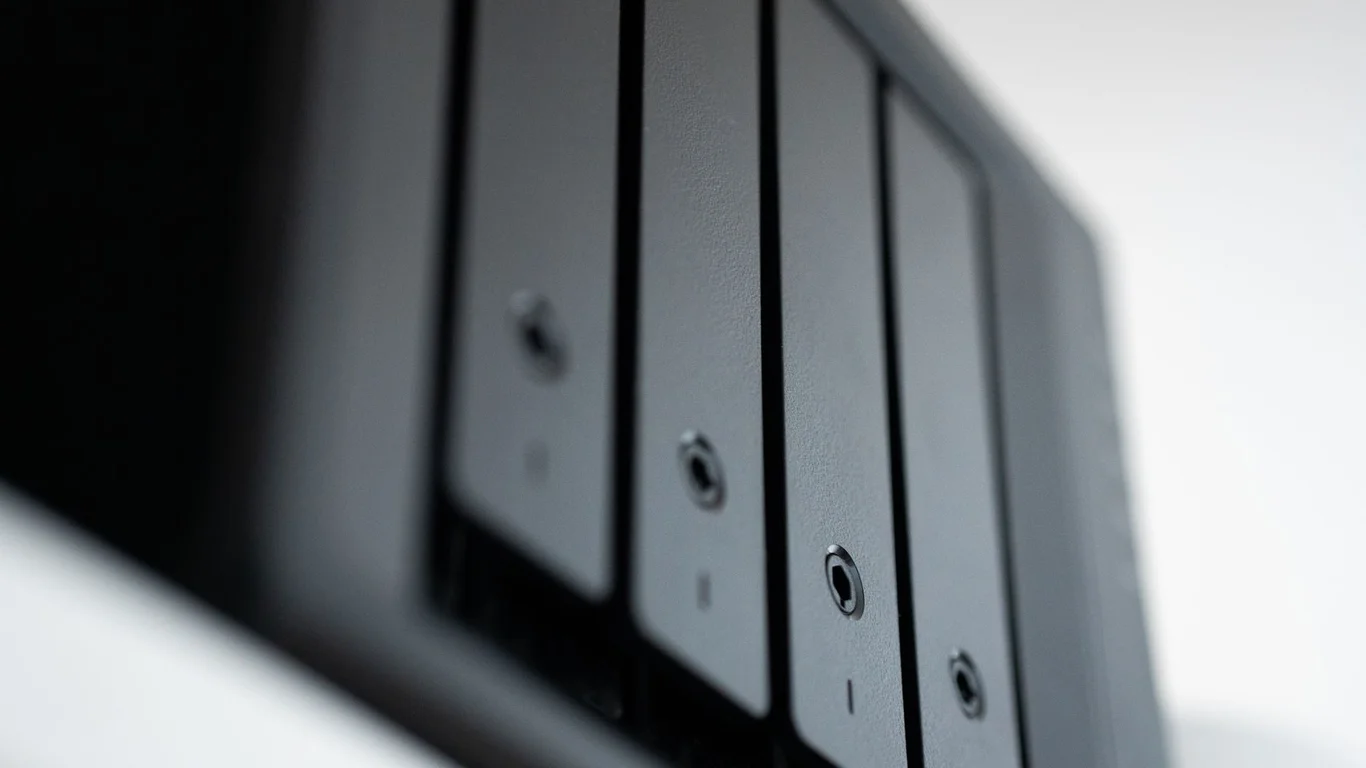
Deciding how much storage you need for a NAS is the single most important step before buying a single drive. It determines your budget, your chassis size, and your future upgrade path. The answer isn’t “as big as possible” — it’s “enough for your current data plus 2-3 years of growth, adjusted for your chosen RAID level.” This guide walks you through the math for backups, media libraries, photo archives, and homelab VMs, so you can enter our Usable Storage & RAID Calculator with real numbers.
Why “Buy the Biggest Drives You Can Afford” Is Bad Advice Without a Use Case
That advice sounds practical until you realize a 20TB drive costs $300+ and you only need 4TB for nightly backups. You end up overspending on capacity you won’t touch for years, or worse, buying enterprise drives that draw 10W idle when a 4TB NAS drive would use 4W. Your use case defines the right capacity, not a blanket rule.
Start with your actual data footprint. A family photo archive of 500GB needs vastly different hardware than a 50TB Plex library. Once you know your raw data size, you apply RAID overhead to get the raw capacity you must buy. This prevents buying a 4-bay NAS with 4x 4TB drives only to discover you need 12TB usable but RAID 5 gives you only 12TB from 4x 4TB — which leaves zero room for growth.
Rough Sizing by Use Case: How Many TB Do You Actually Need?
Every use case has typical data footprints. These are starting points — adjust for your specific files.
| Use Case | Typical Raw Data Size | Recommended Usable Capacity | Notes |
|---|---|---|---|
| Backups only (3-2-1) | 500GB – 2TB | 4TB – 8TB | Include version history and snapshots |
| Plex/Emby media library | 5TB – 30TB | 12TB – 60TB | Depends on 1080p vs 4K, remux vs compressed |
| Photo/video archive (prosumer) | 2TB – 10TB | 8TB – 20TB | RAW photos + 4K video, includes editing copies |
| Docker/VM homelab | 1TB – 5TB | 4TB – 12TB | OS images, container volumes, database storage |
| Mixed household (docs + media + backups) | 3TB – 15TB | 10TB – 30TB | Most common scenario for 4-bay NAS |
Backups Only: How Much Storage for a Simple NAS
If your NAS exists solely for nightly backups of laptops and phones, your data footprint is small. A family with 3 laptops (500GB each) and two phones (128GB each) has roughly 1.8TB of data. But backups need versioning — you want 30-90 days of incremental backups. That multiplies the effective storage needed by 1.5x to 3x. So 1.8TB becomes 3-5TB usable. With RAID 1 (50% efficiency), you need 6-10TB raw capacity — easily handled by 2x 4TB drives in a 2-bay NAS.
Plex Media Library: Real-World Sizing for 1080p vs 4K
Media libraries grow fast. A single 1080p movie at 10Mbps bitrate averages 6-8GB. A 4K remux can hit 60-80GB. A modest library of 200 movies (mix of 1080p and 4K) plus 20 TV series (500 episodes) lands at roughly 8-15TB. A serious collector with 1000+ movies and 100+ series can easily exceed 40TB.
Plan for growth: media libraries expand 20-30% per year as you add new releases. If you have 15TB today, expect 20-22TB in two years. RAID 5 with 4x 12TB drives gives you 36TB usable — comfortable for today and tomorrow. RAID 6 with 4x 12TB gives only 24TB usable, which might feel tight in 3 years.
Photo & Video Archives: RAW Files and Long-Term Growth
If you shoot RAW photos (40-60MB each) or 4K video (400-800MB per minute), storage fills fast. A weekend wedding shoot can produce 200GB of RAW files. An annual family archive of 10,000 photos and 50 hours of 4K video lands at 1.5-2TB per year. Over 5 years, that’s 8-10TB just for archives, plus editing copies (another 50% overhead). Plan for 12-15TB usable minimum.
RAID 6 is recommended here — photo archives are irreplaceable, and a second drive failure during rebuild could wipe out years of work. With 4x 10TB drives in RAID 6, you get 20TB usable, covering 5+ years of shooting.
Docker/VM Homelab: OS Images and Container Volumes
Homelab storage is deceptive. Your OS images (Proxmox, TrueNAS, Ubuntu) take 10-50GB each. Docker containers are small (100MB-2GB each), but their persistent volumes — databases, logs, media caches — grow fast. A single Plex metadata folder can hit 50GB. A Home Assistant database with 30 days of history might be 5GB. A Minecraft server with mods can use 100GB+.
For a typical homelab with 5-10 VMs and 20 Docker containers, plan for 1-3TB of OS + app storage, plus 2-5TB for data volumes. Total: 3-8TB usable. RAID 10 gives good performance for database workloads, but RAID 5 is fine for most users.
How RAID Level Changes How Much Raw Capacity You Need to Buy
This is where most people make mistakes. RAID reduces usable capacity by a predictable amount. If you need 10TB usable, you must buy more raw capacity depending on your RAID level.
| RAID Level | Usable Efficiency | Raw Capacity Needed for 10TB Usable | Fault Tolerance |
|---|---|---|---|
| RAID 0 | 100% | 10TB | None |
| RAID 1 | 50% | 20TB | 1 drive |
| RAID 5 / RAIDZ1 | (n-1)/n | ~13.3TB (4 drives) | 1 drive |
| RAID 6 / RAIDZ2 | (n-2)/n | ~16.7TB (4 drives) | 2 drives |
| RAID 10 | 50% | 20TB | 1 per mirror pair |
| Unraid (single parity) | Varies | ~13.3TB (4 drives) | 1 drive |
Notice the pattern: RAID 5 with 4 drives gives 75% efficiency — you lose one drive to parity. RAID 6 with 4 drives gives only 50% efficiency — you lose two drives. For 10TB usable, RAID 5 needs 3x 6TB drives (18TB raw), but RAID 6 needs 4x 6TB drives (24TB raw). The extra drive cost is the price of double fault tolerance.
Planning for 2-3 Years of Growth, Not Just Today’s Files
Buying for today’s data guarantees you’ll run out of space before your drives reach their warranty. Data grows 15-30% annually for most users. If you have 8TB today, you’ll have roughly 12-14TB in three years. That means you need to buy for 14TB usable, not 8TB.
Here’s the trap: If you buy 4x 4TB drives in RAID 5, you get 12TB usable. Today you have 8TB — great, 33% free. In three years you’ll have 14TB — you’re 2TB over capacity. Now you must replace all four drives or add an expansion unit. Both are expensive.
Instead, buy 4x 8TB drives in RAID 5: 24TB usable. Today you use 8TB (67% free). In three years you use 14TB (42% free). You have room for another 2-3 years after that. The extra $200-300 upfront saves you $500+ in upgrade costs later.
Why Buying 2 Smaller Drives Now to Fill Bays Later Costs More Long-Term
A common “budget” move: buy a 4-bay NAS with 2x 4TB drives in RAID 1 (4TB usable), planning to add 2x 4TB drives later. The problem? You now have 4x 4TB drives. When you need more space, you can’t just add two 8TB drives — RAID arrays typically require all drives to be the same size or at least the smallest drive determines the usable capacity in each vdev. You’d have to replace all 4TB drives with 8TB or larger, wasting the original drives.
Better approach: buy 2x 8TB drives now in RAID 1 (8TB usable). When you need more space, add 2x 8TB drives to create a second vdev or expand the pool. You get 16TB total without wasting any drives. The upfront cost is similar ($250 for 2x 4TB vs $300 for 2x 8TB), but the upgrade path is far cheaper.
Smart Approach
- Buy fewer, larger drives now
- Leave empty bays for future expansion
- Match drive sizes within vdevs
- Plan for 3+ years of growth
Costly Approach
- Fill all bays with small drives
- Replace drives when outgrowing
- Waste original drives
- Pay more per TB over time
Use the Usable Storage & RAID Calculator to Get an Exact Number
By now you should have a rough target: 10TB usable for backups, 20TB for a Plex library, 15TB for photo archives. But the exact number depends on your specific file counts, compression, and growth rate. The Usable Storage & RAID Calculator does the math for you — enter your current data size, expected annual growth, RAID level, and drive count, and it tells you exactly how many drives of what size to buy.
This prevents both underbuying (running out of space in 18 months) and overbuying (spending $500 on capacity you won’t use for 5 years). The calculator also accounts for filesystem overhead (TrueNAS ZFS recommends 80% max usage, Unraid recommends 90%) so you don’t hit performance degradation from a full pool.
Which Storage Size Should You Choose?
For most home users, the sweet spot is 12-24TB usable in a 4-bay NAS using RAID 5 or RAIDZ1 with 4x 8TB or 4x 12TB drives. This covers media libraries, backups, and photo archives for 3-5 years. If you’re purely a backup user, 2x 8TB in RAID 1 (8TB usable) is plenty. For serious homelabbers or 4K collectors, step up to 8-bay with 8x 8TB in RAID 6 (48TB usable) — the cost per TB drops significantly at scale.
Bottom line: Calculate your current data, add 30% annual growth for 3 years, apply your RAID level’s efficiency, and buy drives that give you 20-40% headroom above that. Then use the calculator to confirm your numbers before spending a dollar. Remember that RAID is not a backup — always maintain separate backups of critical data.
Frequently Asked Questions
How many TB do I need for a home NAS?
For a typical home NAS handling backups, media, and document storage, 8-16TB usable is the most common range. A family with 3 laptops, 2 phones, and a moderate media library (200 movies, 20 TV series) usually needs 10-14TB usable. With RAID 5 on 4x 8TB drives, you get 24TB usable — which covers 3-5 years of growth. If you only do backups, 4-8TB usable in RAID 1 is sufficient.
Should I buy bigger drives now or add more later?
Buy bigger drives now if your budget allows. A 4-bay NAS with 2x 12TB drives in RAID 1 costs about $400-500 for the drives. Adding two more 12TB drives later (to create a second vdev) gives you 24TB total without wasting any drives. Buying 4x 4TB drives now costs about the same but maxes out at 12TB usable in RAID 5 — and you can’t easily upgrade without replacing all drives. Bigger drives upfront always win on total cost of ownership over 3-5 years.
How much storage does a Plex library actually use?
A Plex library’s size depends entirely on your media quality. A 1080p movie at 10Mbps takes about 6-8GB. A 4K HDR remux can take 60-80GB. For a library of 500 movies (mix of 1080p and 4K) plus 50 TV series (1000 episodes), expect 15-25TB. If you transcode or use optimized versions, add 20-30% more for the cache. Plex metadata (posters, subtitles, chapter data) adds another 50-100GB. Plan for 20-30% annual growth as you add new content.
Does RAID change how much storage I need to buy?
Yes, significantly. RAID reduces your usable capacity based on the level and number of drives. RAID 1 uses 50% of raw capacity (mirroring). RAID 5 with 4 drives uses 75% (one drive lost to parity). RAID 6 with 4 drives uses only 50% (two drives lost to parity). RAID 10 also uses 50%. If you need 10TB usable, RAID 5 requires 13.3TB raw (3x 6TB drives), while RAID 6 requires 20TB raw (4x 6TB drives). Always calculate your usable storage need first, then apply the RAID efficiency to determine raw capacity.
Last verified: July 09, 2026. Capacity calculations based on standard RAID math and typical usage patterns observed in homelab communities.
🛡 Shop Recommended Hardware
Prices and stock verified regularly by our affiliate partners. As an affiliate, HomeLabCost may earn a commission on qualifying purchases at no extra cost to you.
Browse Hardware Picks →
homelabcost
HomeLabCost editor covering NAS builds, hardware selection, and homelab server setup guides.