
Best HDD for NAS in 2026: Capacity, Reliability & Price Compared
 11 min read
2,091 words
11 min read
2,091 words
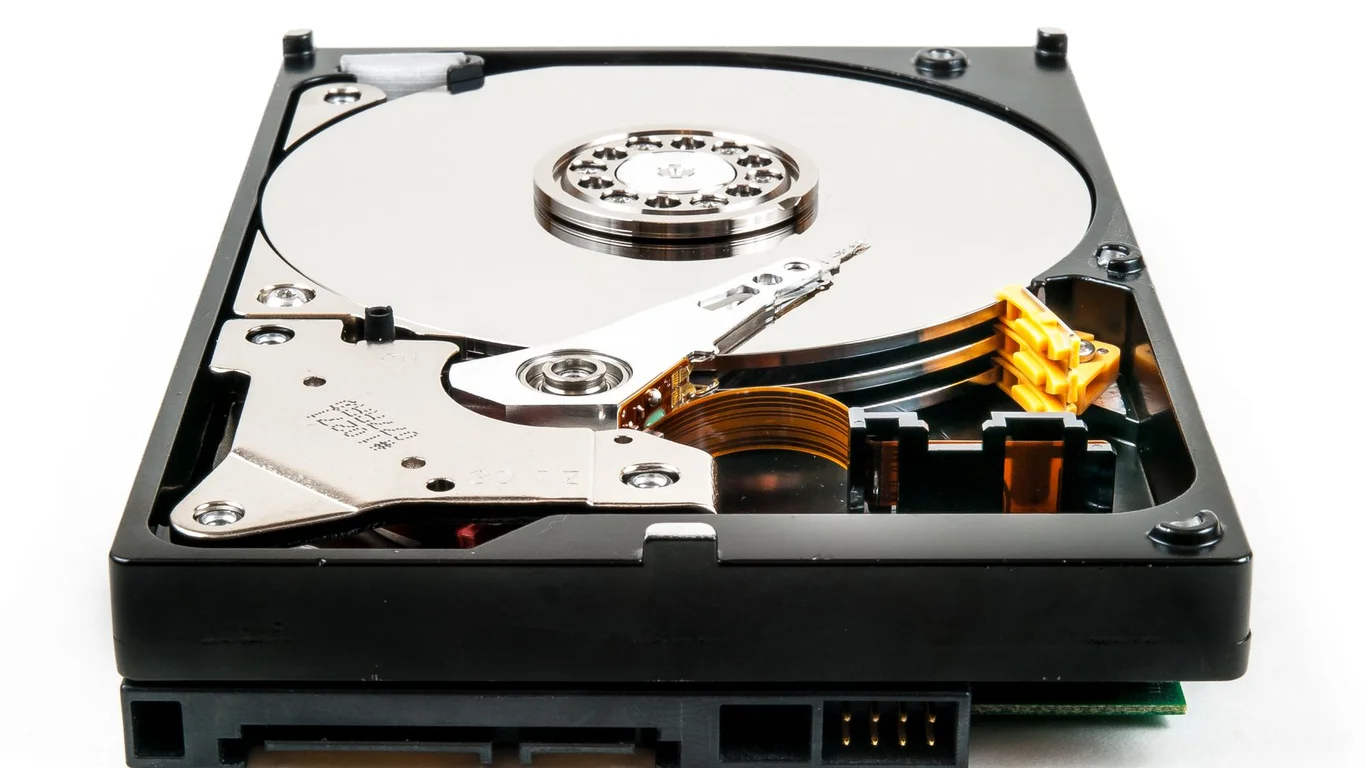
Choosing the right hard drive for your NAS is one of the most critical decisions you’ll make for your homelab. Unlike a desktop PC that runs a few hours a day, a NAS runs 24/7, often in a RAID array where drive vibrations, heat, and sustained workloads compound. The wrong drive — especially a desktop-grade SMR model — can lead to slow rebuilds, premature failure, or data loss. This guide breaks down the best HDDs for NAS in 2026, covering why NAS-rated drives matter, the CMR vs SMR trap, capacity sweet spots, and specific picks for Plex, backups, and high-write workloads.
Why NAS-Rated Drives Are Different from Desktop Drives
Desktop hard drives are designed for intermittent use — a few hours of activity, then idle. NAS-rated drives are engineered for the opposite: continuous 24/7 operation inside a multi-drive enclosure. Three key differences separate them:
Vibration Tolerance in Multi-Bay Arrays
In a 4-bay or 8-bay NAS, each drive vibrates at its own frequency. Those micro-vibrations stack up, causing read/write head misalignment and degraded performance. NAS drives use Rotational Vibration (RV) sensors to compensate in real time, while desktop drives lack this feature entirely. Running four desktop drives in RAID 5 without RV sensors measurably increases latency and error rates during sustained writes.
24/7 Workload Rating and Firmware
NAS drives carry a workload rating — typically 180 TB/year to 550 TB/year — reflecting the amount of data they’re designed to write annually. Desktop drives often have no published workload rating or a much lower one (e.g., 55 TB/year). The firmware also differs: NAS drives use TLER (Time-Limited Error Recovery), which tells the drive to give up on a bad sector quickly (7 seconds) rather than spending 30+ seconds retrying. In a RAID array, a desktop drive that hangs retrying a sector can cause the RAID controller to drop the drive entirely, triggering a degraded array or rebuild.
The “NAS-rated” label isn’t just marketing. Drives like the WD Red Plus and Seagate IronWolf have firmware tuned specifically for RAID controllers. Using a desktop drive in a ZFS pool can cause the pool to kick the drive out during a scrub if the drive’s error recovery timeout exceeds ZFS’s own timeout (typically 8-12 seconds). This is a real, documented failure mode, not a theoretical risk.
CMR vs SMR: Why You Must Avoid SMR in a NAS
CMR (Conventional Magnetic Recording) writes data directly to the platter. SMR (Shingled Magnetic Recording) overlaps tracks like roof shingles, which requires rewriting adjacent tracks when data is updated. This makes SMR drives painfully slow for writes — especially in RAID rebuilds, where the drive must write data to every sector. A rebuild that takes 8 hours on CMR drives can take 3-5 days on SMR drives, and the prolonged stress often causes another drive to fail during the rebuild.
Never use SMR drives in a RAID array (RAID 1, 5, 6, 10, RAIDZ, or Unraid parity). The write amplification during rebuilds creates a high risk of array failure and data loss. SMR drives are acceptable only for cold backup targets written once and read rarely. Check the manufacturer’s spec sheet — if it says “SMR” or “DM-SMR,” do not put it in your NAS.
| Feature | CMR (Recommended) | SMR (Avoid for NAS) |
|---|---|---|
| Write speed (sustained) | 150-260 MB/s | 40-80 MB/s after cache fills |
| RAID rebuild time (4TB, RAID 5) | 6-10 hours | 2-5 days (high risk) |
| Warranty | 3-5 years | 2-3 years (typically) |
| Best use case | Any NAS/RAID configuration | Cold backup, archival |
Best HDD for NAS in 2026: Top Picks by Use Case
The “best” drive depends on your workload. A Plex media server needs capacity and streaming speed. A backup target needs reliability and low cost per TB. A high-write surveillance or database NAS needs high workload ratings. Below are the current recommended models, all CMR and NAS-rated.
Best Overall: Seagate IronWolf Pro (12TB-20TB)
The IronWolf Pro line offers strong performance (up to 260 MB/s), a 550 TB/year workload rating, and a 5-year warranty. The 16TB and 18TB models hit the $15-$18 per TB sweet spot, making them the best value for most homelab builders. They include RV sensors and run relatively cool (28-32°C in good airflow).
- Capacity range: 4TB to 22TB (CMR on all sizes above 8TB)
- Workload rating: 550 TB/year
- Warranty: 5 years
- Best for: Plex libraries, general NAS, backups
Best for Plex Media Libraries: WD Red Pro (14TB-22TB)
For media streaming where read speed matters more than write speed, the WD Red Pro delivers consistent 200-250 MB/s reads and excellent reliability. The 18TB and 20TB models offer the best price-per-TB in the WD lineup. WD’s NASware 3.0 firmware is well-tuned for RAID rebuilds and power management. Pair these with a good CPU — check our Best CPU for TrueNAS in 2026 guide for pairing advice.
Pros
- Excellent read performance for media streaming
- Low failure rates in multi-drive arrays
- 5-year warranty on Pro models
Cons
- Higher price per TB than Seagate Exos
- Lower workload rating (300 TB/yr vs IronWolf Pro’s 550)
Best for High-Write Workloads: Seagate Exos X (Enterprise)
If you’re running a database, surveillance system, or any workload that writes hundreds of terabytes per year, enterprise drives like the Seagate Exos X are the right choice. They carry a 550 TB/year workload rating and are built for 24/7 operation in data centers. The 18TB Exos X typically costs $16-$19 per TB — slightly cheaper than consumer NAS drives at the same capacity. They are slightly louder (2-3 dB idle noise) but offer the highest reliability for heavy use.
Best Budget Pick: Toshiba N300 (8TB-16TB)
Toshiba’s N300 series often undercuts Seagate and WD by $10-$20 per drive while still offering CMR technology, RV sensors, and a 3-year warranty. The 8TB model is a popular entry-level choice for 4-bay NAS builds. The trade-off is a lower workload rating (180 TB/year) and slightly louder operation. For a media server with moderate writes, it’s a solid cost-effective pick.
| Model | Capacity | CMR/SMR | Price per TB | Rated Workload | Warranty |
|---|---|---|---|---|---|
| Seagate IronWolf Pro | 16TB | CMR | $16-$18 | 550 TB/yr | 5 years |
| WD Red Pro | 18TB | CMR | $17-$20 | 300 TB/yr | 5 years |
| Seagate Exos X | 18TB | CMR | $16-$19 | 550 TB/yr | 5 years |
| Toshiba N300 | 8TB | CMR | $14-$16 | 180 TB/yr | 3 years |
| WD Red Plus | 8TB | CMR | $15-$17 | 180 TB/yr | 3 years |
Capacity Tiers: Finding the Price-Per-TB Sweet Spot
Drive pricing fluctuates, but in 2026 the sweet spot for most homelab builders is 14TB to 18TB, typically costing $15-$20 per TB. Smaller drives (4TB-8TB) cost $20-$25 per TB — you pay a premium for lower capacity. Larger drives (20TB-22TB) offer slightly better density but often cost $20-$22 per TB due to newer technology premiums.
For a 4-bay NAS running RAID 5, four 16TB drives give you 48TB usable (three drives’ worth). That’s enough for a large Plex library (2000+ 4K movies) plus daily backups. For smaller needs, four 8TB drives give 24TB usable and cost around $1000 total. Use our How Much Storage Do You Need for a NAS? guide to calculate your exact capacity requirements.
Warranty and Annualized Failure Rate (AFR) Considerations
NAS-rated drives typically carry 3-year or 5-year warranties. The extra warranty cost is usually worth it for a 24/7 drive. Backblaze publishes quarterly hard drive failure statistics — in 2025-2026, Seagate IronWolf Pro and WD Red Pro models consistently showed AFR below 1% in the first three years, while desktop drives used in NAS-like conditions showed AFR of 2-5% after year two.
That said, warranty is not a guarantee of reliability. Drives fail regardless of brand. The most important thing is to have a backup strategy that doesn’t depend on RAID alone. RAID protects against drive failure, not against accidental deletion, ransomware, or physical theft. A separate backup — either a second NAS, cloud storage, or external drives — is non-negotiable. See our RAID 1 vs RAID 5 breakdown for how redundancy levels affect your usable capacity and fault tolerance.
Power Consumption: How Drives Affect Your Electricity Bill
Each NAS hard drive draws 5-12W at idle and 8-15W under load. Four drives running 24/7 at 10W each consume 40W — that’s about $35-$50 per year at average US electricity rates ($0.12/kWh). Eight drives double that. Choosing lower-power drives (like WD Red Plus vs Exos enterprise) can save $20-$40 annually in a 4-bay setup. For tips on reducing overall NAS power draw, read our guide on How to Reduce Your NAS’s Power Consumption.
Which HDD Should You Choose for Your NAS?
Here’s the bottom line for most homelab builders in 2026:
- For a Plex media server or general file storage: Seagate IronWolf Pro 16TB or 18TB — best balance of price, performance, and warranty.
- For a backup-only NAS (write-once, read-rarely): Toshiba N300 8TB or 12TB — lowest cost per TB, adequate reliability for cold data.
- For a high-write NAS (surveillance, databases, frequent syncs): Seagate Exos X 18TB — enterprise reliability and highest workload rating.
- For a budget 4-bay build: WD Red Plus 8TB (CMR) — reliable, quiet, and well-supported in all NAS OSes.
Whichever drive you choose, verify it’s CMR by checking the manufacturer’s spec sheet. Avoid SMR drives in any RAID configuration. And remember: RAID is not a backup — it protects against drive failure, not against accidental deletion, ransomware, or physical theft. A separate backup, such as a second NAS or cloud sync, is the only real data safety net.
Frequently Asked Questions
Do I need a NAS-specific hard drive or can I use a desktop drive?
You can physically install a desktop drive in a NAS, but it’s not recommended for 24/7 RAID use. Desktop drives lack Rotational Vibration (RV) sensors, which causes performance degradation in multi-drive arrays. More critically, desktop drives have longer error recovery timeouts (30+ seconds) that can cause RAID controllers or ZFS to drop the drive during a scrub or rebuild, potentially leading to array failure. NAS-rated drives like WD Red Plus or Seagate IronWolf include RV sensors, TLER firmware, and higher workload ratings (180-550 TB/year vs 55 TB/year on desktop drives). The $15-$30 premium per drive is worth it for the reliability and warranty.
Why should I avoid SMR drives in a NAS?
SMR (Shingled Magnetic Recording) drives have write speeds that drop dramatically once the cache fills — from 150 MB/s to 40-80 MB/s. In a RAID rebuild, the drive must write data to every sector, and SMR’s overlapping track design means it must rewrite adjacent tracks when updating data. A RAID 5 rebuild that takes 8 hours on CMR drives can take 3-5 days on SMR drives. That prolonged stress often causes a second drive to fail, destroying the array. SMR drives are acceptable only for cold backup targets written once and read rarely. For any RAID configuration (RAID 1, 5, 6, 10, RAIDZ, or Unraid parity), always choose CMR drives.
What’s the best HDD capacity for the price right now?
In 2026, the price-per-TB sweet spot is 14TB to 18TB drives, costing $15-$20 per TB. Smaller drives (4TB-8TB) cost $20-$25 per TB — you pay a premium for lower capacity. Larger drives (20TB-22TB) offer slightly better density but often cost $20-$22 per TB due to newer technology. For most homelab builders, 16TB drives from Seagate (IronWolf Pro) or WD (Red Pro) offer the best value. Four 16TB drives in a 4-bay NAS give 48TB usable in RAID 5, which is enough for a large Plex library plus backups. If you’re on a tight budget, 8TB drives (Toshiba N300 or WD Red Plus) at $14-$16/TB are a solid entry point.
How long do NAS-rated drives typically last?
NAS-rated drives are designed for a 5-year service life under continuous 24/7 operation. In practice, drives in well-cooled, vibration-controlled environments often last 5-7 years before failure rates rise significantly. Backblaze’s 2025-2026 data shows annualized failure rates (AFR) below 1% for the first three years for models like Seagate IronWolf Pro and WD Red Pro. After year 4, AFR climbs to 2-4%. Key factors affecting lifespan include: operating temperature (keep below 40°C), vibration (use anti-vibration mounts in multi-bay enclosures), and power quality (use a UPS). Even the most reliable drive can fail at any time — always maintain backups regardless of drive age.
Last verified: July 09, 2026. Specifications cross-checked against Seagate, Western Digital, and Toshiba official product pages. Failure rate data referenced from Backblaze Hard Drive Stats Q1-Q4 2025.
🛡 Shop Recommended Hardware
Prices and stock verified regularly by our affiliate partners. As an affiliate, HomeLabCost may earn a commission on qualifying purchases at no extra cost to you.
Browse Hardware Picks →
homelabcost
HomeLabCost editor covering NAS builds, hardware selection, and homelab server setup guides.