
Mini PC vs NAS: Which Should You Buy for Home Storage?
 11 min read
2,001 words
11 min read
2,001 words
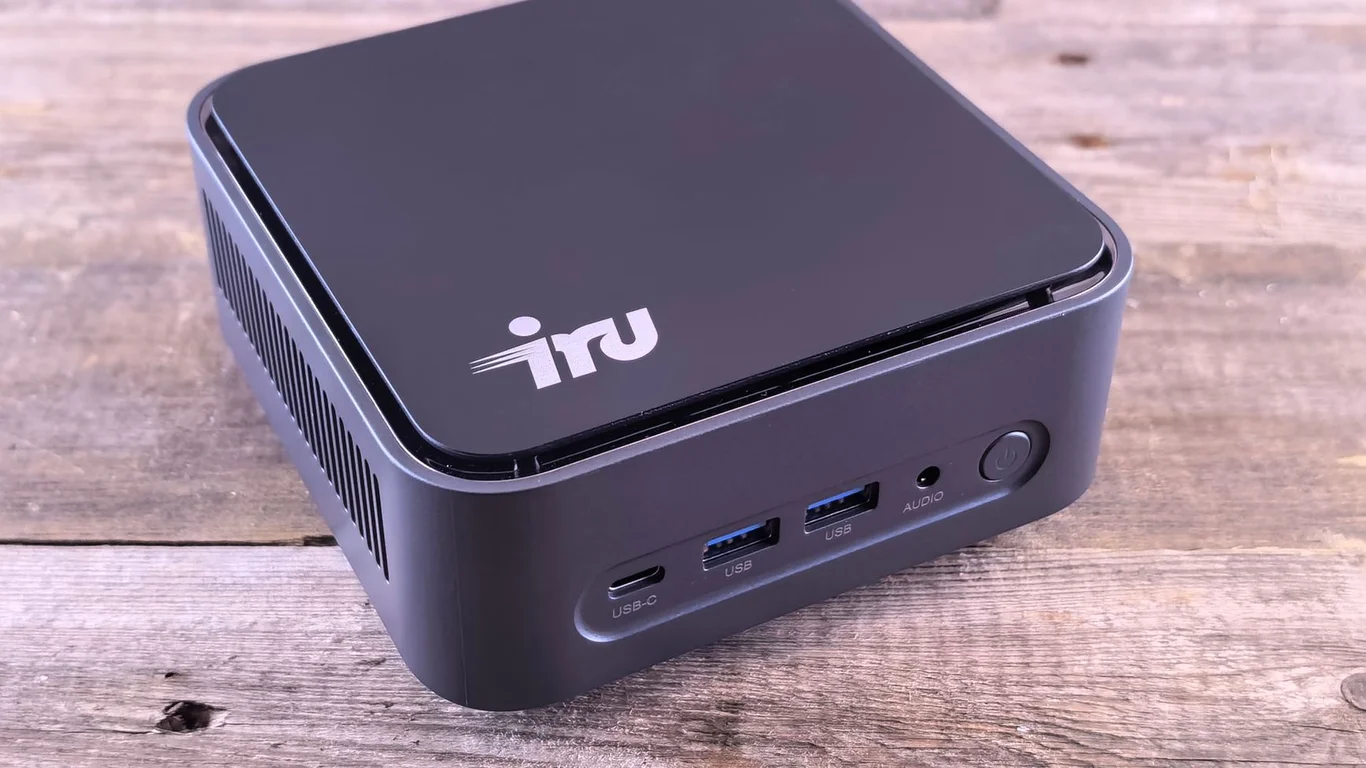
Deciding between a mini PC and a dedicated NAS for home storage often comes down to a single question: do you want a storage appliance that just works, or a general-purpose server you can shape into anything? A dedicated NAS like a Synology or QNAP is a purpose-built storage device with hot-swap drive bays, polished apps, and RAID support out of the box. A mini PC typically offers a faster CPU and more RAM for the same price, but you’ll need to add external enclosures or expansion cards to hold multiple hard drives. This guide compares the two paths head-to-head on cost, performance, ease of use, and flexibility so you can decide which fits your home lab — and your skill level — best.
What Does a Dedicated NAS Do Better Than a Mini PC?
A purpose-built NAS excels at one thing: managing storage with minimal friction. Devices like Synology’s DS series or QNAP’s TS series come with drive bays, pre-installed operating systems, and mobile apps that make file sharing, backup, and media streaming accessible to non-technical users.
Built-in Drive Bays and Hot-Swap Support
A dedicated NAS has physical drive bays designed for 3.5-inch hard drives, often with tool-less trays and hot-swap capability. You slide in a drive, format it through the web interface, and you’re done. No USB enclosures, no SATA cable management, no custom mounting. For a 4-bay Synology DS923+, you can install four 20TB drives and have 60TB usable in RAID 5 (or 40TB in RAID 10) within 30 minutes of unboxing.
Polished Software and Mobile Apps
Synology DiskStation Manager (DSM) and QNAP QTS are mature operating systems with app stores, built-in backup solutions (Hyper Backup, Active Backup for Business), and mobile apps for photos, files, and video. You don’t need to touch a command line to set up SMB shares, Time Machine backups, or sync to cloud storage. For a user who wants “set it and forget it” storage, this is the strongest argument for buying a NAS over a mini PC.
Most consumer NAS units use an integrated ARM or low-power Intel Celeron processor. While fine for file serving and light Plex transcoding (one or two 1080p streams), they struggle with multiple 4K transcodes or running a dozen Docker containers simultaneously. If you plan to run heavy applications alongside storage, a mini PC with a faster CPU is often the better foundation.
Where a Mini PC Wins Over a Dedicated NAS
A mini PC — like an Intel NUC, Beelink SER series, or Minisforum EliteMini — is a full x86 computer in a compact chassis. It runs Windows or Linux, accepts standard DDR4/DDR5 RAM and NVMe SSDs, and typically costs less than a comparable NAS when you factor in the CPU performance per dollar.
Better CPU and RAM for the Same Budget
A $250 mini PC with an Intel N100 processor offers roughly the same single-thread performance as the Celeron J4125 found in many $400+ NAS units, but with newer architecture and lower idle power. For $350-$400, you can get a mini PC with an Intel N305 or even a Ryzen 7 5800U — processors that outperform any consumer NAS CPU by a wide margin. This matters if you plan to run Plex with hardware transcoding, host game servers, or run multiple virtual machines alongside storage. For a deeper look at the N100 vs N305 trade-off, see our Intel N100 vs N305 for a NAS: Is the Upgrade Worth It? guide.
Flexibility Beyond Storage
A mini PC running TrueNAS Scale, Unraid, or Proxmox can do everything a dedicated NAS can — plus host Docker containers, VMs, Home Assistant, Pi-hole, and more — all on the same hardware. A Synology NAS can run Docker containers, but the limited CPU and RAM mean you’ll hit performance bottlenecks quickly. If you want one machine to handle file storage, media serving, smart home automation, and ad blocking, a mini PC gives you that flexibility without buying separate hardware.
Mini PC vs NAS: The Storage Connectivity Challenge
This is the single biggest limitation of using a mini PC for storage: most mini PCs have only one or two M.2 slots and no internal space for 3.5-inch hard drives. To add multiple drives, you need external connectivity.
USB Enclosures: Cheap but Limited
The simplest option is a USB 3.0 or USB-C hard drive enclosure — a single-bay enclosure costs $15-$25, a 4-bay enclosure like the Yottamaster or Mediasonic ProBox runs $60-$100. USB 3.0 provides up to 5Gbps, which is enough for HDDs (typical read speeds 150-250MB/s), but USB is less reliable than native SATA for long-term 24/7 operation. Some enclosures have poor cooling or unreliable power supplies. For a casual home user with 2-3 drives, USB enclosures work fine. For critical data or 6+ drives, you’ll want a better solution.
SATA Expansion Cards: More Reliable, More Effort
If your mini PC has an M.2 slot that supports PCIe bifurcation or an M.2-to-SATA adapter, you can add 4-6 internal SATA ports. Adapters like the JMB585 based M.2-to-5-port SATA card cost $25-$40 and give you proper SATA connections with no USB overhead. The trade-off: you lose the M.2 slot for an NVMe drive, and you need to physically fit the drives somewhere — often in a separate 3D-printed bracket or external enclosure. This is a DIY-friendly approach, but not for someone who just wants to plug in drives and go.
NAS vs Mini PC: Full Cost Comparison
Comparing costs fairly requires matching on capacity and performance. Here’s how a 4-bay Synology DS923+ stacks up against a mini PC with comparable storage:
| Component | Synology DS923+ (4-bay) | Mini PC + Enclosure |
|---|---|---|
| Base unit | $550 | $250 (Beelink N100) |
| RAM | 4GB (upgradeable to 32GB) | 16GB included |
| Drive bays | 4x SATA (hot-swap) | 4x via USB enclosure ($80) |
| Software | Synology DSM (free) | Unraid ($59-$129) or TrueNAS (free) |
| Total (no drives) | $550 | $330-$400 |
| Total with 4x 8TB drives | $1,350 | $1,130-$1,200 |
The mini PC path saves $150-$220 upfront, but that gap narrows if you add a UPS, a managed switch, or a more expensive CPU. The Synology path costs more but includes polished software, a 2-3 year warranty, and no assembly required. For a detailed look at how much storage you actually need, read our How Much Storage Do You Need for a NAS? A Practical Sizing Guide.
Software: TrueNAS vs Unraid vs Synology DSM
The operating system you choose is as important as the hardware. Here’s how the three most common options compare for a mini PC build:
| Feature | Synology DSM | Unraid | TrueNAS Scale |
|---|---|---|---|
| Ease of setup | Excellent (web GUI) | Good (web GUI) | Moderate (web GUI) |
| RAID type | SHR, RAID 0/1/5/6/10 | Unraid parity (JBOD + parity) | ZFS (RAIDZ1/2/3, mirrors) |
| Mixed drive sizes | SHR supports mixed sizes | Yes (core feature) | No (all drives same size) |
| Docker support | Limited by CPU/RAM | Excellent | Excellent |
| Cost | Free (hardware bundled) | $59-$129 | Free |
If you choose a mini PC, Unraid is the most forgiving for beginners because it allows mixed drive sizes and easy expansion. TrueNAS Scale offers better data integrity with ZFS but requires matching drive sizes. For a full comparison, see our TrueNAS vs Unraid: Which Should You Run in 2026? guide. And if you’re building a TrueNAS system, our Best CPU for TrueNAS in 2026: From Basic NAS to ZFS Powerhouse guide covers the hardware side.
Power Consumption: Mini PC vs NAS
Both options are energy-efficient, but the mini PC typically wins on idle power. An Intel N100 mini PC idles at 6-10W with a couple of NVMe drives and a single SSD. Add a 4-bay USB enclosure with spinning hard drives, and idle consumption rises to 15-25W. A Synology DS923+ with four drives idles around 20-30W. Over a year at $0.12/kWh, the difference is roughly $10-$15 annually — not a dealbreaker, but worth noting if you’re power-conscious. For more tips on cutting power costs, check our guide on How to Reduce Your NAS’s Power Consumption (Without Losing Performance).
Which Should You Choose?
Here’s the honest breakdown: if you want a storage device that works out of the box with zero tinkering, buy a Synology or QNAP NAS. You’ll pay a premium for the convenience, but you’ll get reliable hardware, polished apps, and a warranty that covers the entire unit.
If you’re comfortable with a little DIY — installing an operating system, configuring a USB enclosure or SATA adapter, and troubleshooting network shares — a mini PC gives you more performance per dollar and the flexibility to run Plex, Docker, VMs, and more on the same machine. The mini PC path is especially compelling if you already have a spare mini PC or if you plan to expand beyond storage into a full homelab server.
Buy a Dedicated NAS If:
- You want plug-and-play storage with minimal setup
- You need polished mobile apps for photos and files
- You prefer a single-vendor warranty and support
- You don’t plan to run heavy applications alongside storage
Buy a Mini PC If:
- You want more CPU and RAM for the same budget
- You plan to run Plex, Docker, VMs, or game servers
- You’re comfortable with DIY setup and USB enclosures
- You want one machine to handle storage and services
Remember that RAID is not a backup — always maintain separate backups of critical data.
Frequently Asked Questions
Is a mini PC cheaper than a NAS?
Yes, typically a mini PC is cheaper than a dedicated NAS when comparing similar CPU performance. A $250 mini PC with an Intel N100 processor offers better compute performance than a $400+ Synology DS423+ with a Celeron J4125. However, you need to add $60-$100 for a multi-bay USB enclosure to hold multiple hard drives, and you’ll need to pay for storage software if you choose Unraid ($59-$129). The total savings are usually $150-$250 for a 4-bay setup, but the dedicated NAS includes polished software and a warranty that covers the entire system.
Can I add multiple hard drives to a mini PC?
Yes, but not internally. Most mini PCs have only one or two M.2 slots and no space for 3.5-inch hard drives. You can connect a multi-bay USB 3.0 enclosure (4-bay models cost $60-$100) or use an M.2 to 5-port SATA adapter ($25-$40) if your mini PC has an available M.2 slot. USB enclosures are simpler but slightly less reliable for 24/7 operation, while SATA adapters give you native connections but require more DIY effort to mount the drives. For 6+ drives, a dedicated NAS or a custom server chassis is usually easier.
Which is better for running Plex and other apps together?
A mini PC is better for running Plex alongside other applications. Mini PCs with Intel N100 or N305 processors support Quick Sync Video hardware transcoding for multiple 4K streams, and they can run Docker containers, Home Assistant, Pi-hole, and game servers simultaneously. Dedicated NAS units like the Synology DS923+ have weaker CPUs (typically Celeron or Ryzen embedded) that struggle with more than one or two 4K transcodes or multiple Docker containers. If Plex and other apps are your priority, a mini PC running Unraid or TrueNAS Scale is the stronger choice.
Should a beginner buy a Synology or build with a mini PC?
A beginner who wants storage to “just work” should buy a Synology NAS. Synology DiskStation Manager is the most user-friendly NAS operating system, with a web GUI, mobile apps, and built-in backup tools that require no command-line knowledge. A beginner who is willing to spend a few hours learning the basics — installing an OS, configuring network shares, and connecting a USB enclosure — can save money and get more flexibility with a mini PC running Unraid. The mini PC path is not difficult, but it requires more initial effort than unboxing a Synology.
Last verified: July 09, 2026. Specifications cross-checked against manufacturer documentation where available.
🛡 Shop Recommended Hardware
Prices and stock verified regularly by our affiliate partners. As an affiliate, HomeLabCost may earn a commission on qualifying purchases at no extra cost to you.
Browse Hardware Picks →
homelabcost
HomeLabCost editor covering NAS builds, hardware selection, and homelab server setup guides.