
How to Choose the Right Hard Drive for Your NAS
 10 min read
1,853 words
10 min read
1,853 words
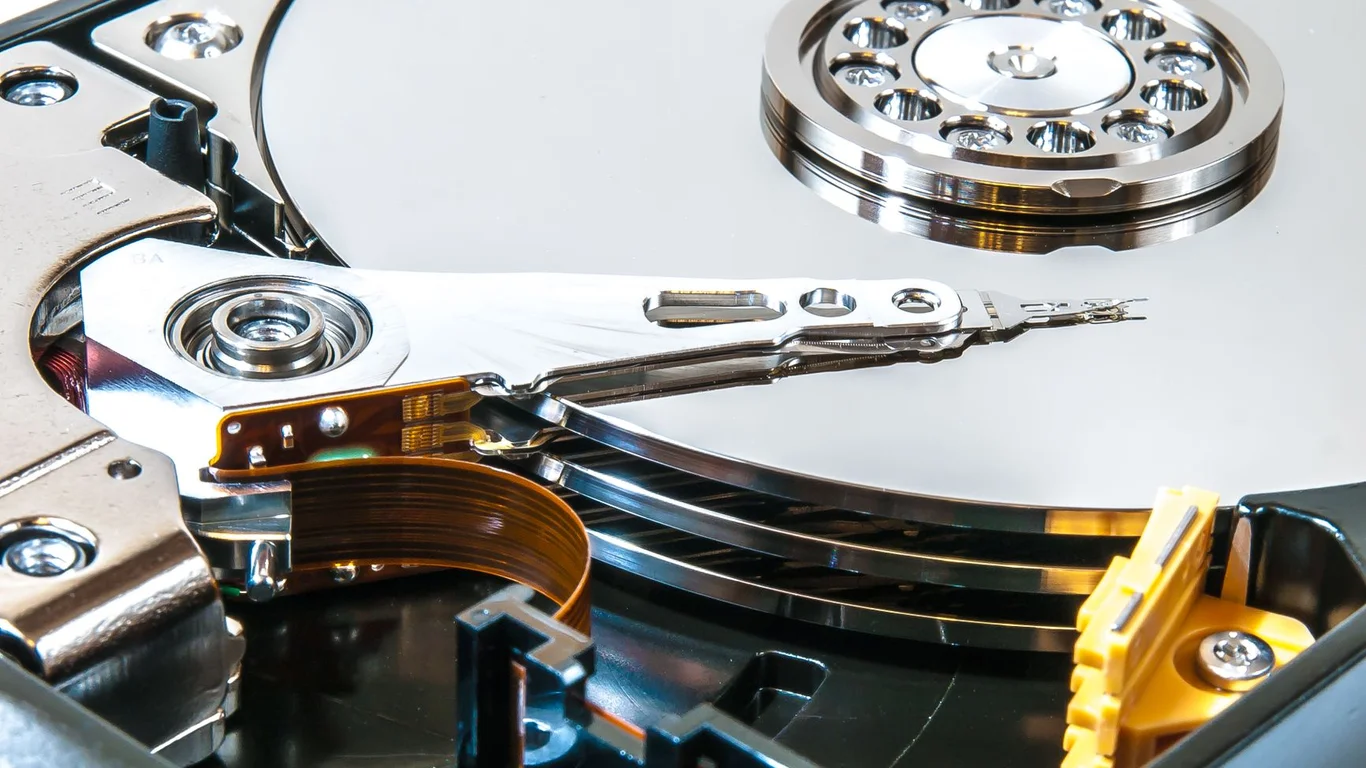
Choosing the right hard drive for your NAS is about matching the drive’s workload rating, rotational speed, and warranty to your specific use case, rather than just buying the cheapest terabyte. This guide cuts through the marketing jargon and focuses on the three specs that actually determine whether a drive will last in a multi-bay enclosure: workload rating, RPM, and warranty length.
How to Choose HDD for NAS: The Three Specs That Actually Matter
When you’re figuring out how to choose a NAS hard drive, you’ll see marketing terms like “NASware” and “IronWolf Health Management.” These are real features, but they build on three foundation specs you must check first. Ignore brand hype for a moment and focus on these.
Workload Rating: The Real Reliability Signal
A drive’s workload rating is the manufacturer’s guarantee of how much data (in TB per year) the drive can read and write under warranty. This is the single most important reliability spec for a NAS drive.
| Drive Class | Typical Workload Rating | Warranty |
|---|---|---|
| Desktop (Barracuda, Blue) | 55-80 TB/yr | 2 years |
| NAS (IronWolf, Red Plus) | 180-300 TB/yr | 3 years |
| Enterprise (Exos, Ultrastar) | 550 TB/yr | 5 years |
A NAS in a home lab with a few users might write 20-50 TB per year. A surveillance system or a media server with constant downloading and transcoding can easily hit 100+ TB. If you exceed a desktop drive’s workload rating, the warranty is voided and the drive is more likely to fail from vibration and heat stress in a multi-bay chassis.
If you run a 24/7 NAS with Plex, Sonarr, and a few Docker containers, choose a drive with at least a 180 TB/yr workload rating. That’s the minimum for a true NAS-grade drive.
RPM Trade-Off: 5400 vs 7200 for Your NAS
The RPM decision is a direct trade-off between speed and noise/heat/power. Here’s what each means for a home NAS.
5400-5900 RPM (e.g., WD Red Plus, Seagate IronWolf)
- Idle power: 3-5W per drive
- Noise: 20-25 dBA (very quiet)
- Sequential read: 150-210 MB/s
- Best for: media storage, backups, archival
7200 RPM (e.g., WD Red Pro, Seagate IronWolf Pro, Enterprise)
- Idle power: 6-9W per drive
- Noise: 28-36 dBA (noticeable in a quiet room)
- Sequential read: 230-280 MB/s
- Best for: VMs, databases, high-user file serving
For a typical home NAS that serves media files and backups, 5400 RPM drives are the smarter choice. They run cooler, which matters in a cramped 4-bay or 8-bay chassis, and they draw less power. If you need faster random I/O for virtual machines or a database, step up to 7200 RPM or consider a small SSD cache.
NAS HDD Grade Explained: Desktop vs NAS vs Enterprise
Understanding NAS HDD grade explained means knowing what changes between tiers. It’s not just a marketing label — the firmware, vibration sensors, and error recovery are all different.
Desktop Drives: Cheap but Risky in a NAS
A desktop drive like a Seagate Barracuda or WD Blue is designed for a single PC with occasional use. In a NAS, it lacks TLER (Time-Limited Error Recovery), meaning if it hits a bad sector, it can spend minutes trying to recover while the RAID controller drops it from the array. That’s a potential array failure for a single bad sector.
Using desktop drives in a RAID array is risky. A drive that takes too long to correct a read error can cause the RAID controller to mark it as failed, even if the drive is fine. This can trigger a lengthy rebuild that stresses all remaining drives.
NAS-Grade Drives: The Sweet Spot
NAS drives like the Seagate IronWolf (non-Pro) and WD Red Plus include TLER, vibration sensors (RV sensors), and firmware tuned for RAID. They cost about 15-25% more than desktop drives per TB, but the reliability gain is worth it for a 24/7 system. For a 4-bay home NAS, this is the tier most buyers should target.
Enterprise Drives: Overkill or Necessary?
Enterprise drives like Seagate Exos or WD Ultrastar are built for datacenter racks with constant vibration and heavy workloads. They offer 550 TB/yr workload ratings and 5-year warranties. For a home NAS with 4-8 drives, they are often overkill — but if you find them on sale for near the price of NAS drives, they are a solid upgrade. They are louder and run hotter, so check your chassis cooling.
Enterprise drives often have a higher power-on-hours rating (2.5 million hours MTBF vs 1 million for NAS drives), but in a home lab that runs 24/7, both will likely outlast your need for them. The real differentiator is the warranty and workload rating — if you write less than 100 TB/yr, a NAS drive is sufficient.
HDD vs SSD: Where Each Belongs in Your NAS
The HDD vs SSD decision isn’t about choosing one over the other — it’s about using each for its best role. A NAS built entirely on SSDs is expensive and unnecessary for bulk storage.
| Role | Best Drive Type | Why |
|---|---|---|
| Bulk media storage (movies, music, photos) | HDD (5400 RPM, NAS-grade) | Lowest cost per TB, sequential reads are fast enough |
| Active downloads and temporary files | HDD | Write endurance is fine for this workload |
| Operating system / boot drive | SSD (SATA or NVMe) | Faster boot, app loading, and system responsiveness |
| VM or database storage | SSD | Random I/O is much faster; reduces latency |
| Cache (read or write) | SSD (NVMe preferred) | Speeds up frequently accessed data on HDD pools |
A common cost-effective setup is a 250-500GB SSD for the OS and apps, plus 2-4 NAS-grade HDDs in a RAID pool for data. If your NAS software supports it (TrueNAS, Unraid), adding an NVMe SSD as a read cache can dramatically speed up repeated file access.
How to Choose a NAS Hard Drive: A Simple Decision Checklist
Before you buy, run through this checklist to narrow your options.
- How many drives will your NAS hold? (4-bay = less vibration concern; 8-bay or more = need RV sensors)
- What is your primary use? (Media streaming = 5400 RPM; VMs/databases = 7200 RPM or SSD cache)
- What is your annual write workload? (Under 100 TB/yr = NAS-grade; over 100 TB/yr = enterprise-grade)
- How important is noise? (Living room = 5400 RPM; basement/garage = 7200 RPM fine)
- What is your budget per TB? (NAS-grade drives cost $15-$25/TB; enterprise $20-$30/TB)
- Do you need the longest warranty possible? (5 years = enterprise; 3 years = NAS-grade)
For most home NAS buyers, a 5400 RPM NAS-grade drive (like the WD Red Plus or Seagate IronWolf) in the 8-14TB range offers the best balance of cost, noise, and reliability. If you need more speed or have a heavy workload, step up to 7200 RPM or enterprise drives.
Your drive choice also affects your power bill. A 4-bay NAS with 5400 RPM drives idles around 25-35W, while the same setup with 7200 RPM drives idles at 40-55W. Over a year, that difference can add $15-$30 to your electricity cost. See our guide on How to Reduce Your NAS’s Power Consumption for more details.
Which Should You Choose? The Bottom Line for Your NAS Drive
Here is the practical recommendation based on your situation:
- Home media server (Plex, Jellyfin) with 4-6 bays: Buy 5400 RPM NAS-grade drives (WD Red Plus or Seagate IronWolf). They are quiet, cool, and cost-effective. Pair them with a small SSD for the OS.
- Home lab with VMs, databases, or heavy file serving: Buy 7200 RPM NAS-grade or enterprise drives (WD Red Pro, Seagate IronWolf Pro, or Exos). Add an NVMe SSD for cache if your NAS software supports it.
- Budget-conscious build: Buy 5400 RPM NAS-grade drives in the largest capacity you can afford. One 12TB drive costs less per TB than two 6TB drives, and you leave room for future expansion.
- 8-bay or larger chassis: Buy enterprise drives with RV sensors. The vibration in a large array can cause performance drops and increased error rates with consumer drives.
No matter which you choose, remember that RAID protects against drive failure, not against accidental deletion or ransomware. Always maintain a separate backup of your critical data. For more on sizing your storage, read our guide on How Much Storage Do You Need for a NAS?.
Frequently Asked Questions
Do I need a NAS-specific hard drive?
Yes, for any multi-bay NAS running 24/7, a NAS-specific drive is strongly recommended. Desktop drives lack TLER (Time-Limited Error Recovery), which can cause RAID controllers to drop a drive during a minor read error, potentially triggering a full array rebuild. NAS drives also include vibration sensors and firmware optimized for RAID environments, reducing the risk of premature failure. If you are building a single-drive external enclosure that is used occasionally, a desktop drive may work, but for a real NAS, the extra cost is a worthwhile investment in reliability.
Is 7200rpm worth it over 5400rpm for a home NAS?
It depends on your use case. For media streaming and file backups, 5400 RPM drives offer sequential read speeds of 150-210 MB/s, which is more than enough for streaming 4K video or transferring large files. They also run quieter (20-25 dBA), cooler (3-5W idle), and are less expensive per TB. If you run virtual machines, databases, or have multiple users accessing random data simultaneously, 7200 RPM drives (230-280 MB/s sequential) will reduce latency. For most home NAS owners, 5400 RPM is the better value, especially if the NAS lives in a living space.
What warranty length should I look for in a NAS drive?
Aim for at least a 3-year warranty for a NAS-grade drive, and a 5-year warranty for an enterprise-grade drive. This is a direct signal of the manufacturer’s confidence in the drive’s reliability. Desktop drives typically have only 2-year warranties and lower workload ratings. If you plan to keep your NAS for 4-5 years, a 5-year warranty provides peace of mind and often correlates with a higher MTBF (Mean Time Between Failures) rating. Check the warranty terms carefully — some manufacturers require proof of purchase and may prorate the warranty after the first year.
Should I buy HDD or SSD for my NAS?
Buy both, but use each for its best role. Use HDDs (5400 RPM NAS-grade) for bulk storage of media, backups, and archives — they offer the lowest cost per TB, typically $15-$25 per TB. Use SSDs for the operating system, applications, and any databases or virtual machines that benefit from fast random I/O. A 250-500GB SATA SSD for the OS is a common and affordable upgrade. For even better performance, add an NVMe SSD as a read or write cache in TrueNAS or Unraid. A full SSD array is expensive ($100-$200 per TB) and unnecessary for most home NAS users.
Last verified: July 09, 2026. Specifications cross-checked against manufacturer documentation where available.
🛡 Shop Recommended Hardware
Prices and stock verified regularly by our affiliate partners. As an affiliate, HomeLabCost may earn a commission on qualifying purchases at no extra cost to you.
Browse Hardware Picks →
homelabcost
HomeLabCost editor covering NAS builds, hardware selection, and homelab server setup guides.