
Best Immich Server Build 2026: Self-Hosted Photo & Video Backup
 10 min read
1,924 words
10 min read
1,924 words
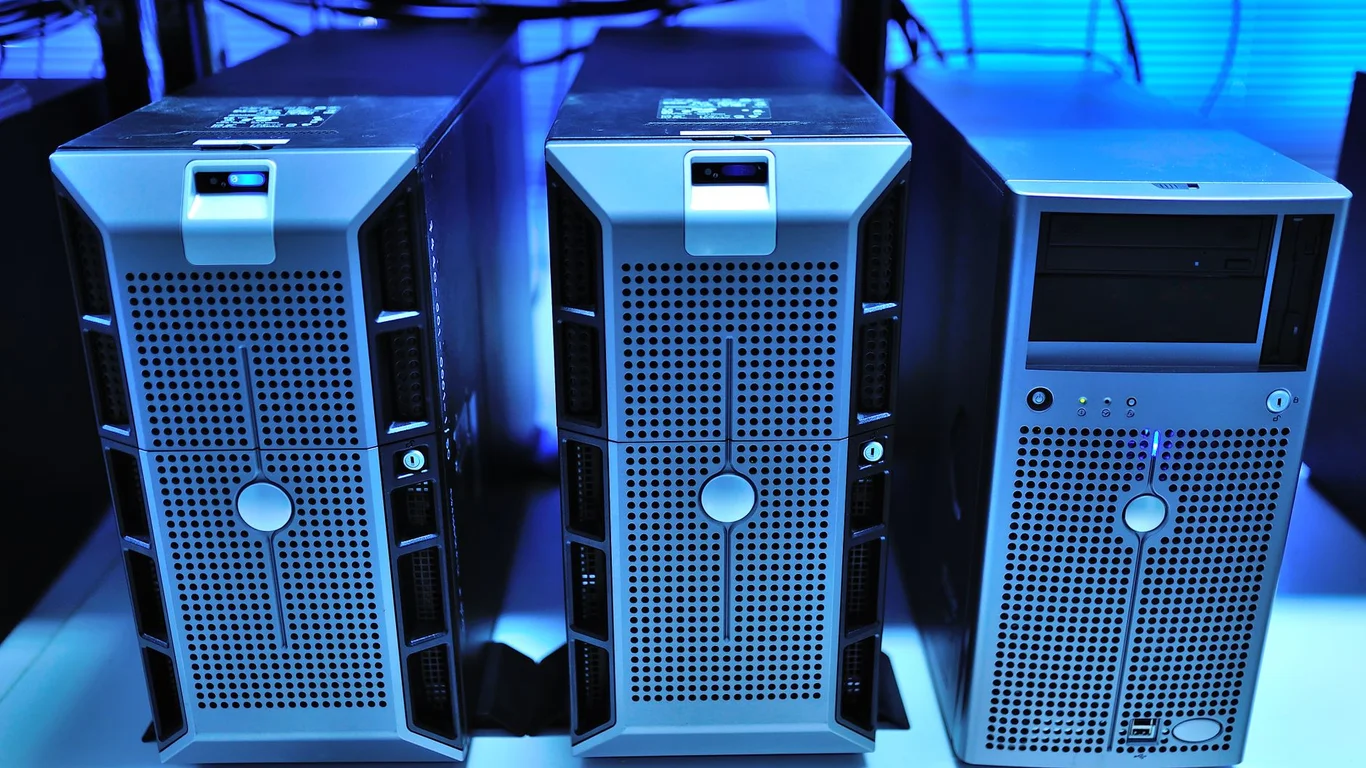
If you are planning a self-hosted replacement for Google Photos or iCloud in 2026, the best Immich server build balances storage capacity with the hardware needed for its demanding machine learning features. Immich can run on surprisingly modest hardware for basic photo browsing, but its facial recognition, object detection, and smart search require a significant CPU or GPU investment. This guide breaks down the exact hardware requirements for each feature tier, then walks through three complete builds — budget, mid-range, and GPU-accelerated — so you can match your server to your photo library and budget.
Base Hardware Needs for Photo and Video Storage
Immich, at its core, is a web application that stores and serves your media files. The base requirements for simply uploading, browsing, and downloading photos are moderate. You need a reliable CPU, enough RAM to keep the stack running, and sufficient storage for your photo library.
The CPU handles the web server, database queries, and image thumbnail generation. A modern quad-core processor like an Intel N100 or an older i3-8100 is perfectly adequate for a single user or a small family library. For video thumbnails and transcoding, Intel Quick Sync Video (on 7th-gen or newer CPUs) provides excellent hardware acceleration without needing a discrete GPU.
RAM is more important than you might expect. Immich runs as a Docker stack with multiple containers: the main server, a Postgres database, a Redis cache, and the machine learning container (if enabled). Postgres alone can consume 1-2 GB of RAM with a moderate library. For a basic setup without ML features, 8 GB of RAM is the realistic minimum for a smooth experience.
When You Need Extra CPU/GPU for Immich’s Machine Learning
Immich’s standout features — automatic face grouping, object/tag recognition, and smart search — are powered by machine learning models. These are computationally expensive. Running them on a CPU is possible but slow, especially for large libraries.
For a library of 10,000+ photos, CPU-based face detection can take 12-24 hours for the initial scan. A dedicated GPU cuts that to 2-4 hours.
If you plan to use facial recognition and object tagging, you have two paths:
- CPU-only (budget): A modern 6-core or 8-core CPU (like an Intel i5-12400 or Ryzen 5 5600) will work, but expect slow initial processing and higher CPU usage during library scans. Fine for small libraries under 5,000 photos.
- GPU-accelerated (recommended for ML): An NVIDIA GPU with CUDA cores dramatically accelerates inference. An NVIDIA T4 (16 GB VRAM) or an RTX 3060 (12 GB VRAM) are excellent choices. Avoid AMD GPUs for now — Immich’s ML pipeline is optimized for CUDA.
RAM Sizing for the Immich Stack
The Immich Docker stack is more RAM-hungry than a typical media server like Plex or Jellyfin. Here is a realistic breakdown of RAM usage per component:
| Component | Typical RAM Usage | Notes |
|---|---|---|
| Immich Server (main) | 500 MB – 1 GB | Scales with concurrent users |
| Postgres Database | 1 GB – 4 GB | Larger libraries need more cache |
| Redis Cache | 200 MB – 500 MB | Session and job queue |
| Machine Learning Container | 1 GB – 4 GB | During active scanning |
For a basic setup (no ML): 8 GB is the minimum, but 16 GB is strongly recommended for headroom. For an ML-enabled server: 16 GB is the practical minimum; 32 GB is comfortable for libraries over 50,000 photos. Postgres benefits greatly from extra RAM for caching frequently accessed metadata.
If you run Immich alongside other services (Plex, Home Assistant, file server), allocate at least 8 GB of RAM exclusively for the Immich stack. Running out of RAM causes Postgres to swap or crash, leading to database corruption. Always configure a swap partition or swap file as a safety net.
Storage Growth Planning for Photo and Video Libraries
Photo libraries grow faster than most people estimate. A single user with a modern smartphone can generate 50-100 GB of photos and videos per year. A family of four can easily hit 300-500 GB annually, especially with 4K video recording.
Immich stores original files on disk and generates thumbnails and compressed versions. The thumbnails add about 5-10% overhead on top of the original file sizes. For a 5-year plan, size your storage accordingly.
| Library Size | 1 Person | Family of 4 |
|---|---|---|
| 1 Year | 500 GB – 1 TB | 2 TB – 4 TB |
| 3 Years | 1.5 TB – 3 TB | 6 TB – 12 TB |
| 5 Years | 2.5 TB – 5 TB | 10 TB – 20 TB |
For RAID, a two-drive RAID 1 mirror gives you fault tolerance but halves raw capacity. A four-drive RAID 5 or RAIDZ1 gives three drives usable — good for capacity-focused builds. Remember: RAID protects against drive failure, not accidental deletion or ransomware. RAID is not a backup. Maintain a separate backup of your Immich library to an external drive or cloud service.
For a deeper dive on sizing your storage, see our guide on How Much Storage Do You Need for a NAS?
Three Build Tiers for the Best Immich Server Build in 2026
Below are three complete builds covering different budgets and feature requirements. Each tier specifies CPU, RAM, storage, GPU (if needed), and approximate cost.
| Component | Budget (CPU-Only) | Mid-Range | ML-Accelerated |
|---|---|---|---|
| CPU | Intel N100 (4C/4T, Quick Sync) | Intel i5-12400 (6C/12T) | Intel i5-13500 (14C/20T) |
| RAM | 8 GB DDR4 | 16 GB DDR4 | 32 GB DDR5 |
| Storage | 2 x 2 TB SSD (RAID 1) | 4 x 4 TB HDD (RAID 5) | 6 x 8 TB HDD (RAIDZ2) |
| GPU | None (iGPU only) | None (iGPU only) | NVIDIA RTX 3060 (12 GB) |
| Case + PSU | Mini PC (e.g., Beelink N100) | Fractal Node 304 + 300W PSU | Fractal Define R5 + 650W PSU |
| Approx. Cost | $250 – $350 | $600 – $800 | $1,200 – $1,600 |
| Best For | 1-2 users, basic browsing | Small family, some ML | Large family, full ML features |
Budget Build: CPU-Only for Basic Browsing
This build uses a low-power Intel N100 mini PC. It handles basic photo upload, browsing, and thumbnail generation without issue. It can run Immich’s ML features, but expect very slow processing — hours for a few thousand photos. Ideal for a single user who just wants self-hosted photo backup without smart search.
Good Fit
- Single user or couple
- Under 5,000 photos
- Minimal power draw (6-10W idle)
Bad Fit
- Large libraries (50K+ photos)
- Need fast face recognition
- Running multiple heavy services
Mid-Range Build: i5 with Quick Sync
An Intel i5-12400 with 16 GB of RAM and a 4-bay NAS case. Quick Sync handles video transcoding and thumbnail generation. The CPU can run ML tasks at a moderate pace — expect 4-8 hours for a 10,000-photo library. This is the sweet spot for most homelabbers who want decent performance without a discrete GPU.
For power efficiency tips on this build, check out our guide on How to Reduce Your NAS’s Power Consumption.
ML-Accelerated Build: GPU for Full Features
This build pairs a high-core-count CPU with an NVIDIA RTX 3060 (12 GB VRAM) for fast ML inference. Face detection and object tagging complete in minutes, not hours. The 32 GB of RAM ensures Postgres and the ML container never compete for memory. This is the best Immich server build for families or power users who want the full Google Photos experience at home.
The RTX 3060 draws 130-170W under load. Ensure your PSU has sufficient headroom and your case has adequate airflow. Idle power is around 30-50W, which is still significant for a 24/7 server.
Mobile App Auto-Backup Considerations
Immich’s mobile app provides background photo and video backup, similar to Google Photos. This feature does not directly affect server hardware requirements because the upload process is light on the server side. However, consider these indirect effects:
- Network bandwidth: Multiple users backing up large 4K videos simultaneously can saturate a 1 Gbps link. A 2.5 Gbps NIC is a worthwhile upgrade for family setups.
- Storage write speed: SSDs handle concurrent writes better than HDDs. If your family uploads 50+ photos per day, an SSD cache or all-SSD storage improves responsiveness.
- Thumbnail generation: Each uploaded photo triggers thumbnail generation. A faster CPU or GPU reduces the lag between upload and availability in the web UI.
Which Build Should You Choose?
For most homelabbers replacing Google Photos in 2026, the mid-range build with an i5-12400 and 16 GB of RAM offers the best balance of cost, performance, and power efficiency. It handles a family library of 10,000-20,000 photos with acceptable ML speed, and Quick Sync handles video transcoding without a GPU. If you have a large library (50,000+ photos) and want fast face recognition, invest in the ML-accelerated build. The budget N100 build is a capable entry point for single users who prioritize low power over ML features.
Whichever tier you choose, run Immich on a dedicated SSD for the database and metadata. Spinning HDDs are fine for the original media storage, but the Postgres database and thumbnail cache benefit greatly from low-latency NVMe storage. A single 256 GB or 512 GB NVMe drive is sufficient for the OS and Docker data.
For more on choosing between operating systems for your Immich server, read our comparison of TrueNAS vs Unraid. If you are building a TrueNAS-based server, our Best CPU for TrueNAS guide will help you pick the right processor.
Frequently Asked Questions
Does Immich need a GPU?
No, Immich does not strictly need a GPU. It runs perfectly well on CPU-only hardware for basic photo upload, browsing, and thumbnail generation. However, the machine learning features — facial recognition, object detection, and smart search — benefit enormously from an NVIDIA GPU with CUDA support. Without a GPU, these tasks are processed by the CPU, which can take hours for large libraries. For a library under 5,000 photos, a modern 6-core CPU is acceptable. For 50,000+ photos, a GPU cuts processing time from days to hours.
How much storage do I need for Immich?
Storage requirements depend entirely on your photo and video library size. A single person with a modern smartphone typically generates 50-100 GB per year. A family of four can produce 300-500 GB annually, especially with 4K video. For a 5-year plan, expect 2.5-5 TB for one person and 10-20 TB for a family. Immich stores original files and generates thumbnails that add about 5-10% overhead. Plan for RAID redundancy — RAID 1 mirrors your capacity, while RAID 5 gives three drives usable. Always maintain a separate backup of your Immich library.
Can Immich run on a low-power CPU like the N100?
Yes, the Intel N100 can run Immich for basic photo backup and browsing. It is an excellent choice for a single user with a small library (under 5,000 photos). The N100’s integrated GPU supports Intel Quick Sync Video for efficient video thumbnail generation. However, the N100 will struggle with Immich’s machine learning features. Face detection and object tagging will take very long — hours for a few thousand photos. For ML features, a more powerful CPU or a discrete GPU is strongly recommended. The N100 is best for a low-power, CPU-only setup.
Is Immich RAM-hungry compared to Plex or Jellyfin?
Yes, Immich is more RAM-intensive than a typical media server like Plex or Jellyfin. The Immich Docker stack includes a Postgres database, a Redis cache, and a machine learning container, each consuming significant memory. Postgres alone can use 1-4 GB of RAM for caching metadata. The ML container adds another 1-4 GB during active scanning. For basic browsing without ML, 8 GB is the minimum, but 16 GB is recommended. For ML-enabled setups, 16 GB is the practical minimum, and 32 GB is comfortable for libraries over 50,000 photos. Plex or Jellyfin typically run well on 4-8 GB of RAM.
Last verified: July 09, 2026. Specifications cross-checked against Immich official documentation, Intel ARK, and NVIDIA product pages where available.
🛡 Shop Recommended Hardware
Prices and stock verified regularly by our affiliate partners. As an affiliate, HomeLabCost may earn a commission on qualifying purchases at no extra cost to you.
Browse Hardware Picks →
homelabcost
HomeLabCost editor covering NAS builds, hardware selection, and homelab server setup guides.